To connect to Microsoft Teams with the provided conference credentials, you have 3 options :
I. Connect with Microsoft Teams client (Recommended)
II. Connect with Chrome
III. Connect with Edge
To connect to Microsoft Teams with the provided conference credentials, you have 3 options :
I. Connect with Microsoft Teams client (Recommended)
II. Connect with Chrome
III. Connect with Edge
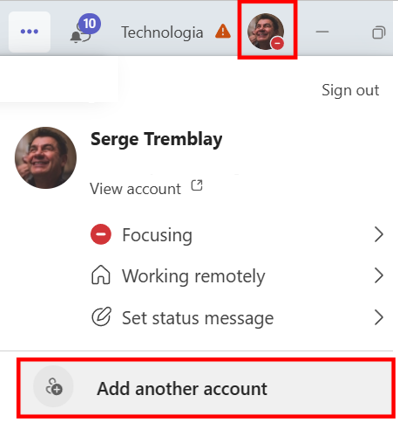
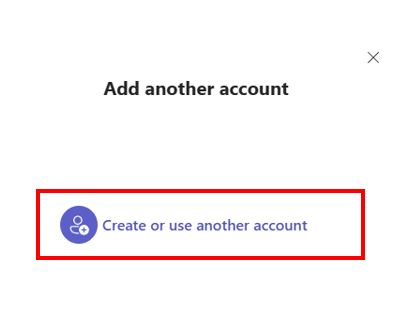
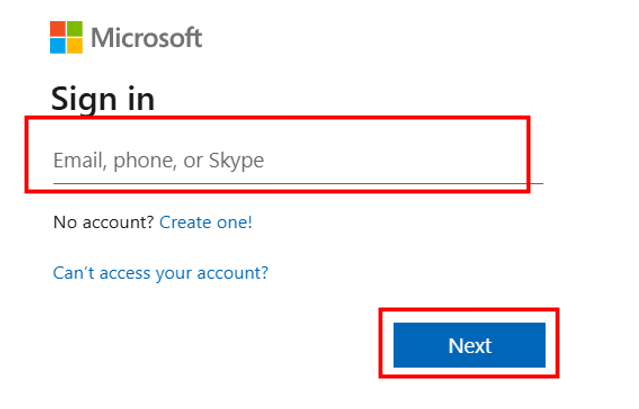
If you already have Microsoft Teams installed on your chosen device (computer / tablet / smartphone), to connect to the conference content it is IMPORTANT to SIGN-IN with the provided PaperWeek credentials.

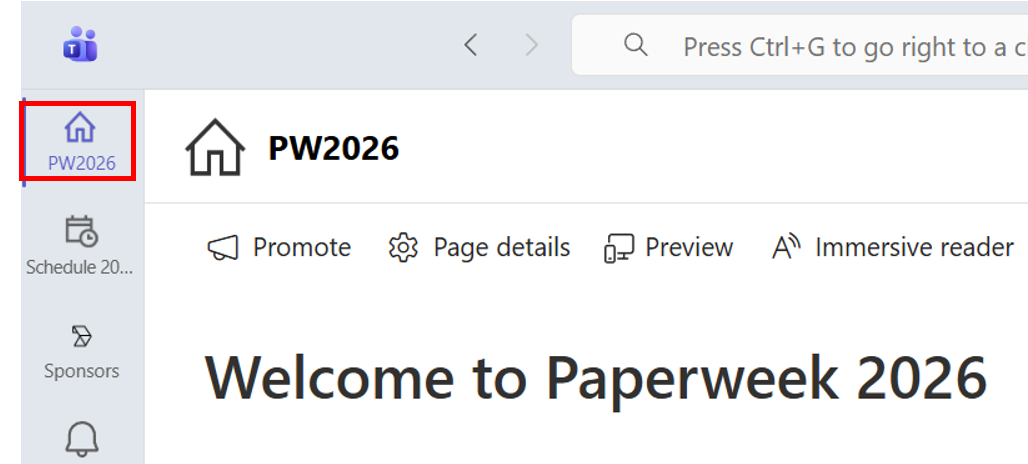
The PW2026 Home page should be shown by default with the message « Welcome to PaperWeek 2026 »
If it’s not shown, click on the first link (PW2026) on the top of the left bar in Microsoft Teams.
To return to your corporate or personal account in Teams, you will need to click on your picture on the top right and select the account you want to switch to.
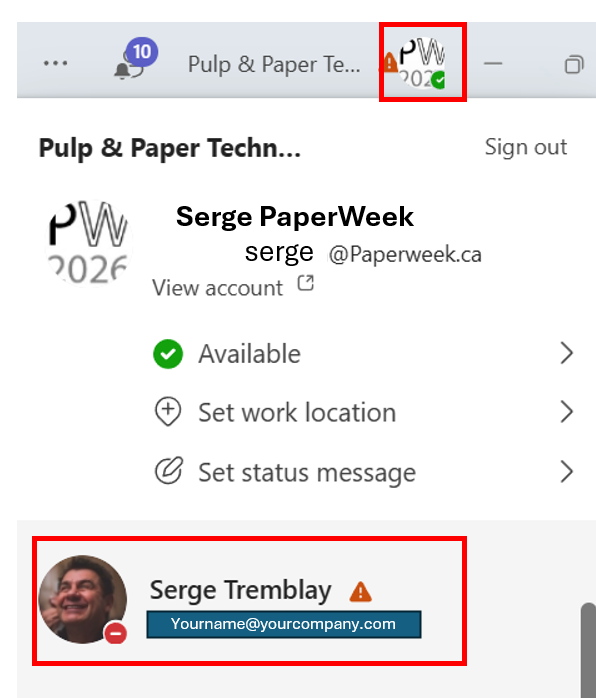
If you are connected to Teams with your corporate or personal account, and you have followed the first steps to sign in to Teams with your PaperWeek credential, you should see your PaperWeek account on the bottom.
Access to the PaperWeek 2026 Team
When you are connected to Microsoft Teams with your PaperWeek account, you will see PW2026, Schedule 2026 and Sponsors on the top of the left navigation bar.
To access the PaperWeek 2026 Team, there are two options depending on the settings of your Microsoft Teams client.
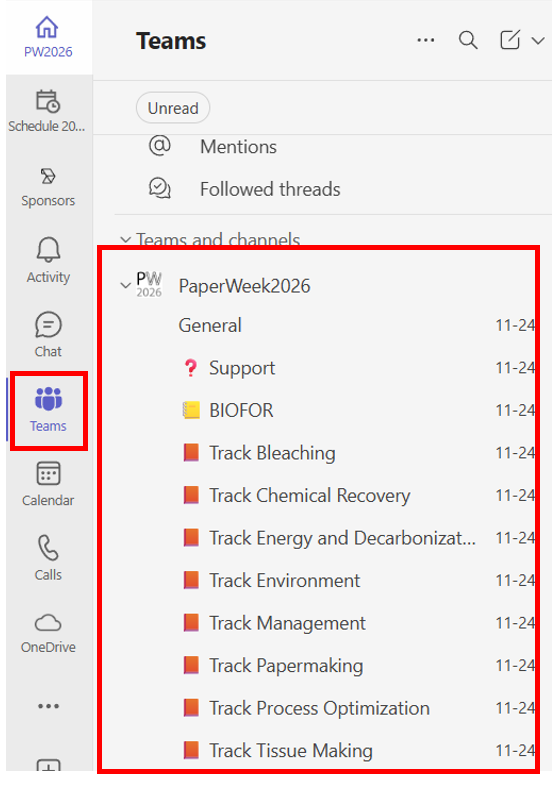
Option 1: You see Teams on the left navigation bar in Teams
Click on Teams on the left navigation bar, click on PaperWeek2026
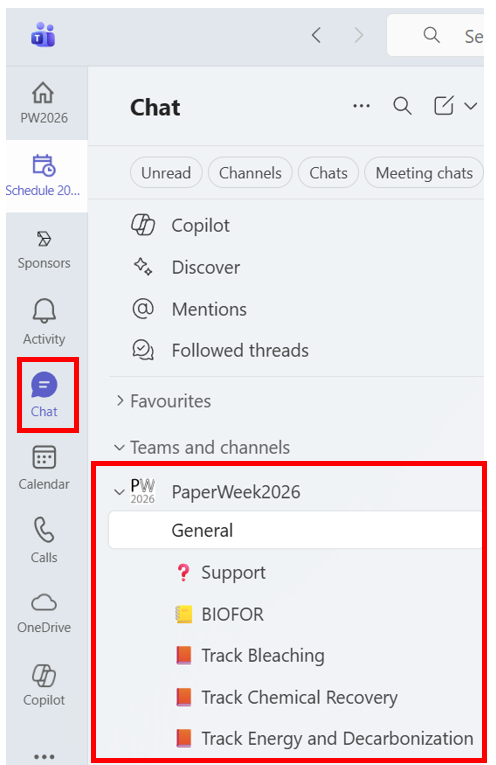
Option 2: You don’t have Teams on the left navigation bar in Teams
Click on Chat on the left navigation bar, click on PaperWeek206 under the Teams and channel section
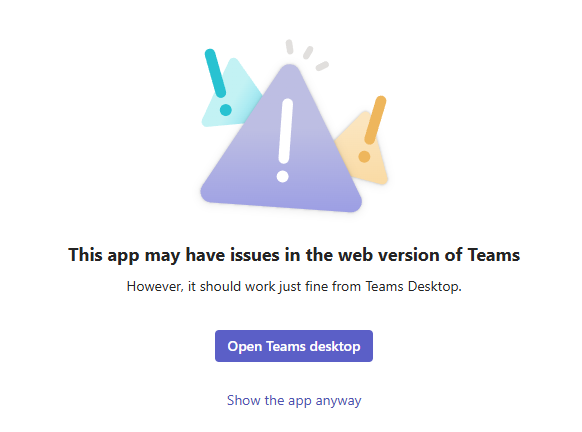
Note: If you connect to Microsoft Teams with Google Chrome, you will get the warning message when accessing PW2026, Schedule2026 and Sponsor page.
You can select show the app anyway, it is working in most cases. If the pages are not displayed properly, you will need to connect with the Microsoft Teams Application and not the browser.
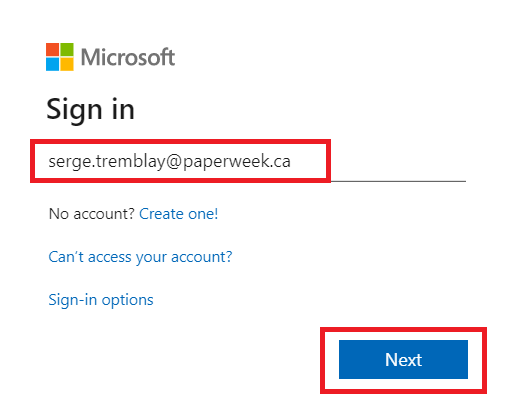
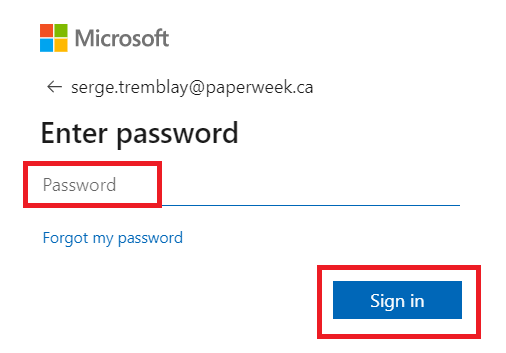
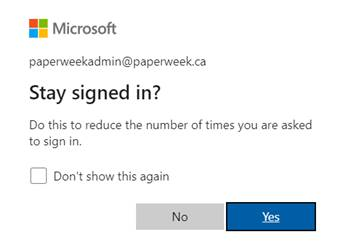
Type teams.microsoft.com in the URL bar
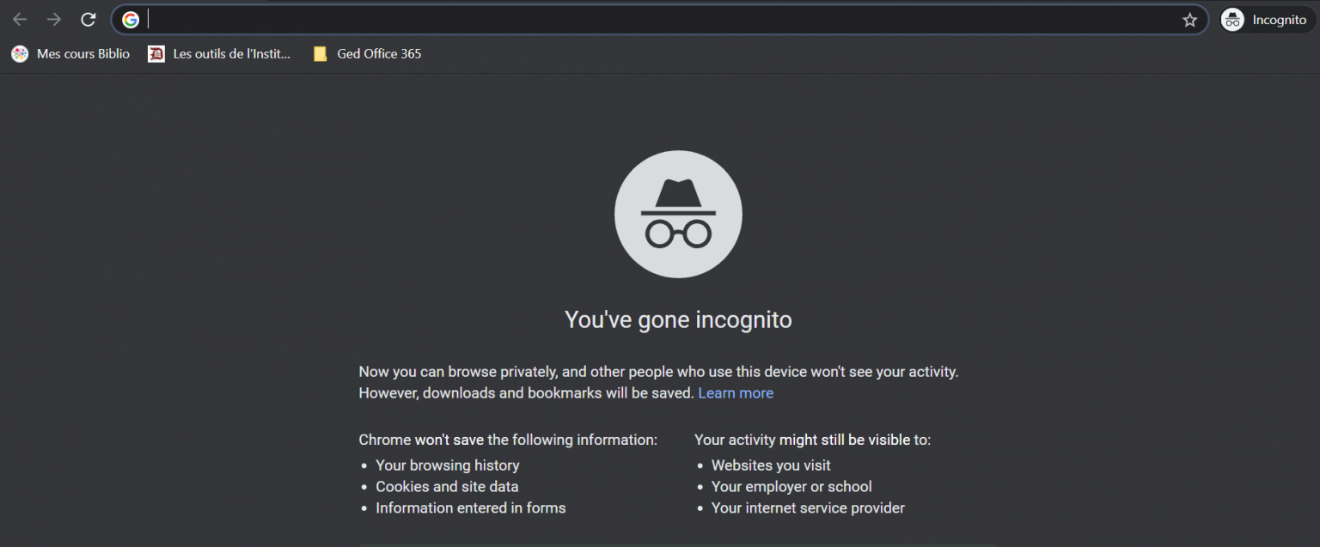
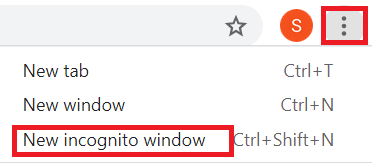
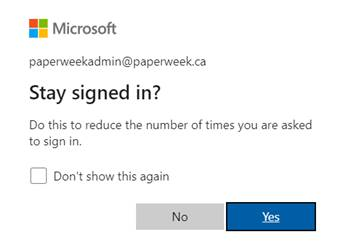
Note : The username should follow this format: [email protected]
Access to the PaperWeek 2026 Team
When you are connected to Microsoft Teams with your PaperWeek account, you will see PW2026, Schedule 2026 and Sponsors on the top of the left navigation bar.
To access the PaperWeek 2026 Team, there are two options depending on the settings of your Microsoft Teams client.
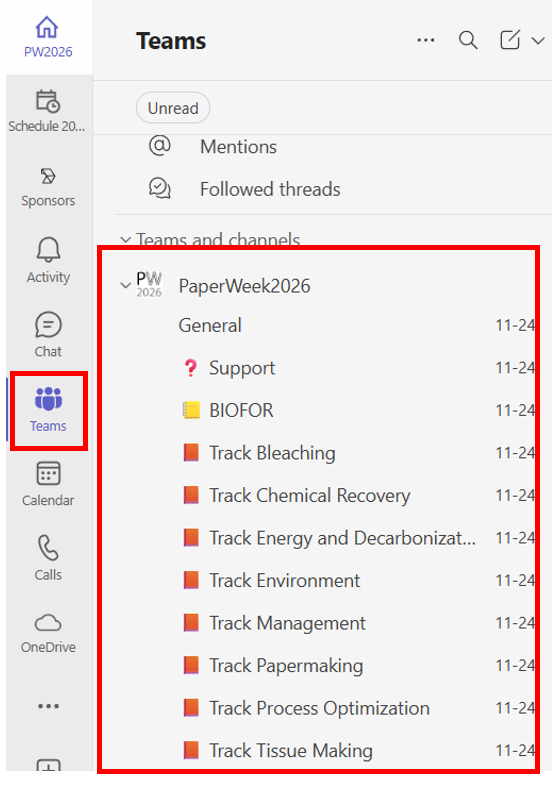
Option 1: You see Teams on the left navigation bar in Teams
Click on Teams on the left navigation bar, click on PaperWeek2026
Option 2: You don’t have Teams on the left navigation bar in Teams
Click on Chat on the left navigation bar, click on PaperWeek206 under the Teams and channel section

Note: If you connect to Microsoft Teams with Microsoft Edge, you will get the warning message when accessing PW2026, Schedule2026 and Sponsor page.
You can select show the app anyway, it is working in most cases. If the pages are not displayed properly, you will need to connect with the Microsoft Teams Application and not the browser.
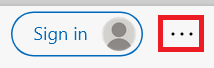
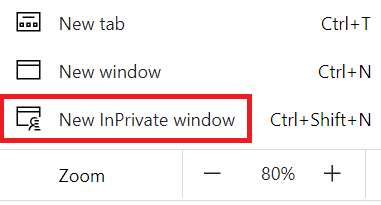
A new Window with the black background and InPrivate Browsing will open in Edge
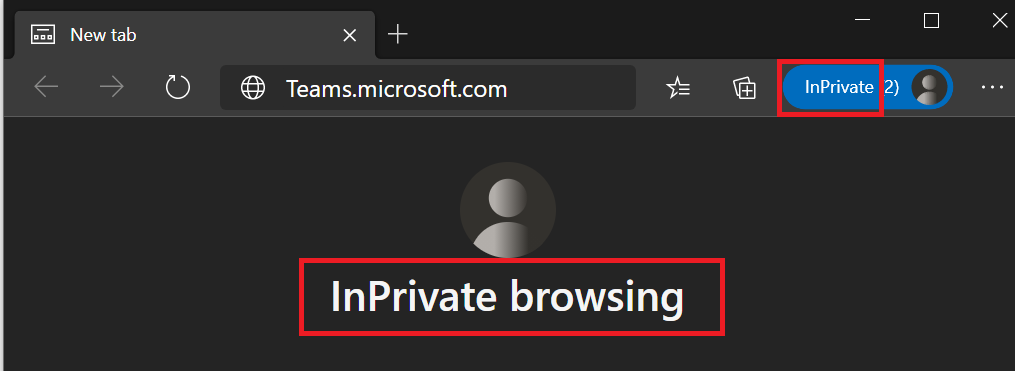
Type teams.microsoft.com in the URL bar

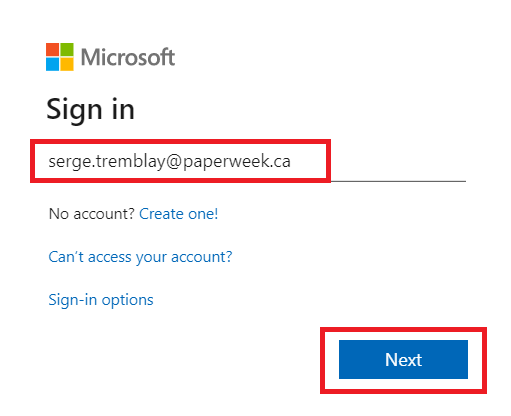
Note : The username should follow this format: [email protected]
Access to the PaperWeek 2026 Team
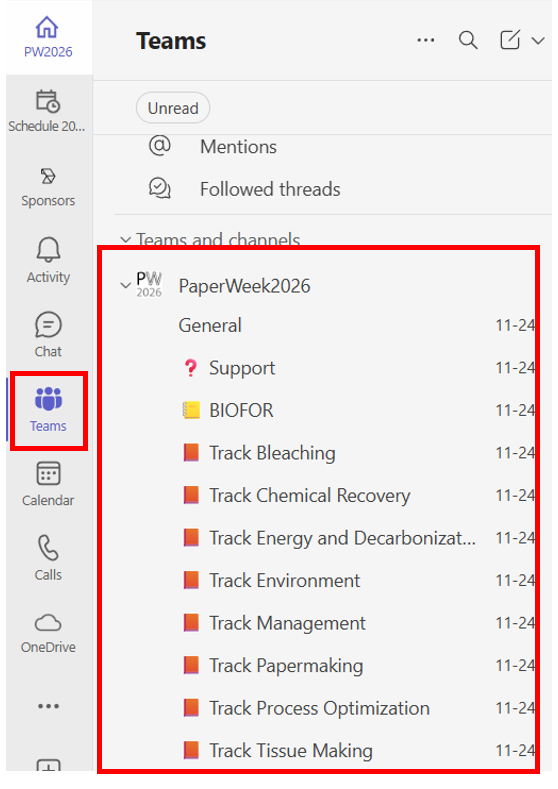
When you are connected to Microsoft Teams with your PaperWeek account, you will see PW2026, Schedule 2026 and Sponsors on the top of the left navigation bar.
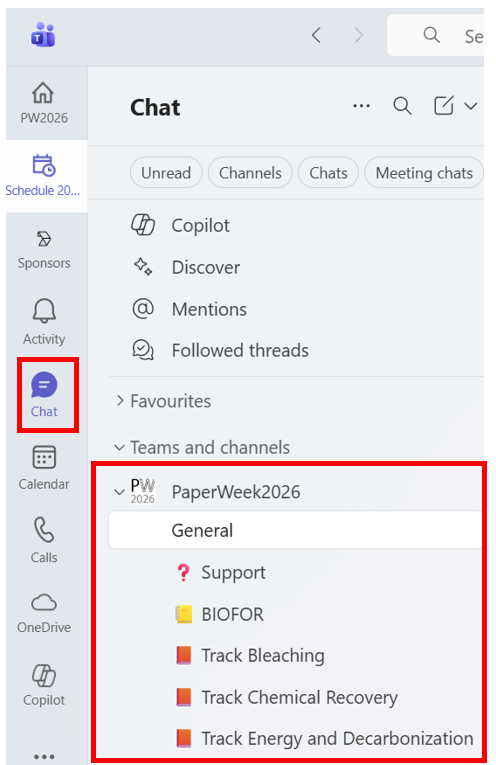
To access the PaperWeek 2026 Team, there are two options depending on the settings of your Microsoft Teams client.
Option 1: You see Teams on the left navigation bar in Teams
Click on Teams on the left navigation bar, click on PaperWeek2026
Option 2: You don’t have Teams on the left navigation bar in Teams
Click on Chat on the left navigation bar, click on PaperWeek206 under the Teams and channel section
Pour vous connecter à Microsoft Teams avec les informations d’identification de conférence, vous avez 3 options :
I. Connectez-vous avec l’application Microsoft Teams (recommandé)
II. Connectez-vous avec Chrome
III. Connectez-vous avecEdge
Si Microsoft Teams est déjà installé sur l’appareil de votre choix (ordinateur / tablette / smartphone), pour vous connecter au contenu de la conférence, il est IMPORTANT de vous CONNECTER avec les informations d’identification PaperWeek fournies.
La page d’acceuil PW2026 devrait apparaître par défaut avec le message « Welcome to PaperWeek 2026 »
Si cela ne s’affiche pas, cliquez sur le premier lien (PW2026) dans le coin supérieur gauche de la barre d’outils Microsoft Teams.
Pour retourner à votre compte personnel ou professionnel dans Teams, vous devrez cliquer sur votre avatar dans le coin supérieur droit et sélectionner le compte que vous désirez utiliser.
Si vous êtes connecté à Teams avec votre compte personnel ou professionnel, et que vous avez suivi les premières étapes pour vous connecter à Teams avec vos identifiants PaperWeek, vous devriez voir votre compte PaperWeek en bas.
Accéder à l’équipe PaperWeek 2026
Une fois connecté à Microsoft Teams avec votre compte PaperWeek, vous verrez PW2026, Schedule 2026 et Sponsors dans le haut de la barre d’outils à gauche
Pour accéder à l’équipe PaperWeek 2026, il y a 2 options selon les paramètres de votre application Teams.
Option 1: Vous voyez Équipes/Teams dans la barre d’outils Teams à gauche
Cliquez sur Équipes/Teams dans la barre d’outils à gauche, cliquez sur PaperWeek2026
Option 2: Vous ne voyez pas Équipes/Teams dans la barre d’outils à gauche de Teams
Cliquez sur Clavardage/Conversation/Chat dans la barre d’outils à gauche, cliquez sur PaperWeek2026 sous la section Teams et Canaux ( Teams and channel)
Note: si vous vous connectez à Microsoft Teams avec Google Chrome, vous verrez ce message d’avertissement en accédant à PW2026, Schedule2026 et Sponsor page.
Vous pouvez choisir show the app anyway, cela fonctionnera dans la plupart des cas. Si les pages ne s’affichent pas correctement, vous devrez vous connecter avec l’application Microsoft Teams et non pas avec google chrome.
Tapez teams.microsoft.com dans la barre d’adresse URL
Note: Le nom d’utilisateur devrait suivre ce format: Pré[email protected]

Accéder à l’équipe PaperWeek 2026
Une fois connecté à Microsoft Teams avec votre compte PaperWeek, vous verrez PW2026, Schedule 2026 et Sponsors dans le haut de la barre d’outils à gauche
Pour accéder à l’équipe PaperWeek 2026, il y a 2 options selon les paramètres de votre application Teams.
Option 1: Vous voyez Teams dans la barre d’outils Teams à gauche
Cliquez sur Teams dans la barre d’outils à gauche, cliquez sur PaperWeek2026
Option 2: Vous ne voyez pas Teams dans la barre d’outils à gauche de Teams
Cliquez sur Chat dans la barre d’outils à gauche, cliquez sur PaperWeek2026 sous la section Teams and channel
Note: si vous vous connectez à Microsoft Teams avec Microsoft Edge, vous verrez ce message d’avertissement en accédant à PW2026, Schedule2026 et Sponsor page.
Vous pouvez choisir show the app anyway, cela fonctionnera dans la plupart des cas. Si les pages ne s’affichent pas correctement, vous devrez vous connecter avec l’application Microsoft Teams et non pas avec Microsoft Edge.
Sur votre ordinateur, ouvrez Microsoft Edge.
Cliquez sur les 3 points (…) à la droite du bouton Se connecter

Tapez teams.microsoft.com dans la barre URL
Note : Le nom d’utilisateur doit suivre ce format: [email protected]
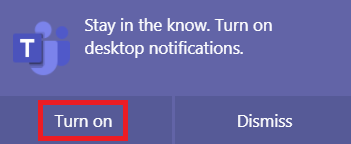
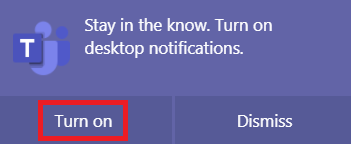
Si une boite mauve s’ouvre avec: « Restez au courant. Autorisez les notifications de bureau»
Accéder à l’équipe PaperWeek 2026
Une fois connecté à Microsoft Teams avec votre compte PaperWeek, vous verrez PW2026, Schedule 2026 et Sponsors dans le haut de la barre d’outils à gauche
Pour accéder à l’équipe PaperWeek 2026, il y a 2 options selon les paramètres de votre application Teams.
Option 1: Vous voyez Teams dans la barre d’outils Teams à gauche
Cliquez sur Teams dans la barre d’outils à gauche, cliquez sur PaperWeek2026
Option 2: Vous ne voyez pas Teams dans la barre d’outils à gauche de Teams
Cliquez sur Chat dans la barre d’outils à gauche, cliquez sur PaperWeek2026 sous la section Teams and channel
PaperWeek redefines the global conference environment. Participants will discover a brand new way to refine their skills with expert presentations from around the world, and experience an effective digital approach designed to help build their network, facilitate knowledge transfer and bring the industry together.

For general information about the conference, including registration, contact us at:
[email protected]
(514) 392-0265
(514) 392-0369
© 2025 PAPERWEEK. All Rights Reserved.